

Key Takeaways
- Router placement is one of the most impactful — and free — fixes for poor home Wi-Fi coverage.
- Walls, floors, appliances, and even fish tanks absorb or deflect wireless signals.
- Central, elevated placement distributes signal more evenly than a corner or closet location.
- The 2.4 GHz band reaches farther through obstacles; the 5 GHz band offers faster speeds at closer range.
- Mesh systems or Wi-Fi extenders can fill coverage gaps that repositioning alone cannot solve.
Wi-Fi Signal Propagation
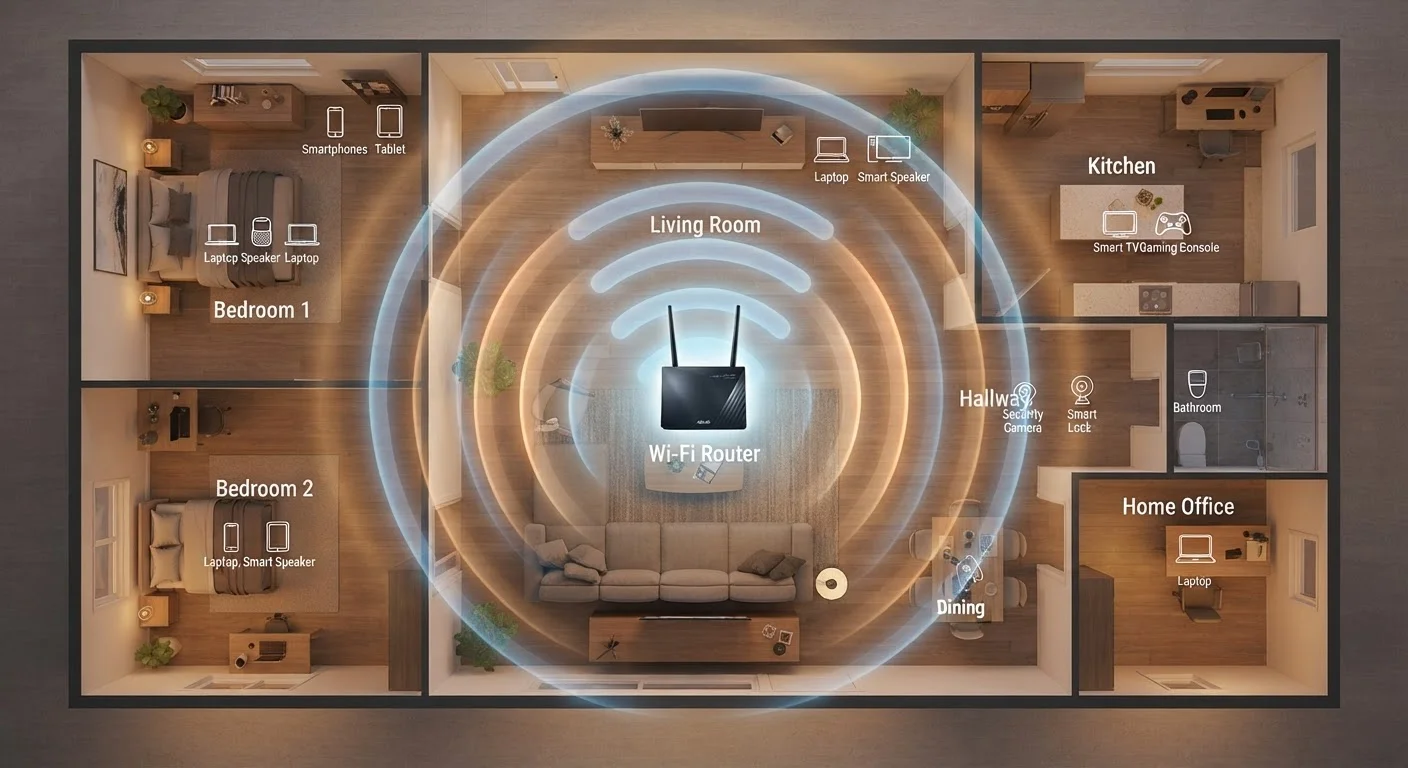
Wi-Fi signal propagation is the way wireless radio waves travel from your router through the air — and through walls, floors, and furniture — to reach your devices. The signal weakens with distance and every physical obstacle it passes through. Where your router sits in your home directly determines how far and how evenly that signal can spread.
Wi-Fi operates on two primary radio frequency bands: 2.4 GHz (longer range, more wall penetration) and 5 GHz (faster speeds, shorter range). Dual-band routers broadcast both simultaneously.
The Hidden Reason Your Connection Feels Inconsistent
Most people assume their Wi-Fi speed is fixed — whatever the internet plan delivers is what they get. In reality, the signal reaching your laptop or phone depends heavily on physics that happen inside your walls, not at your provider's equipment. Router placement is the single most overlooked variable in home networking, and it costs nothing to fix.
When your router broadcasts a signal, it doesn't travel in a straight beam like a flashlight. It radiates outward in all directions, more like a bubble than a spotlight. Every wall, floor, ceiling, and piece of furniture that signal passes through absorbs a portion of it. By the time the wave reaches your bedroom or home office, it may have lost enough strength to make streaming video unreliable or video calls choppy. The ripple effect of a slow connection touches far more of your day than most people realize.
~30%
Signal strength lost through a single interior wall
Industry estimates suggest a standard drywall interior wall can reduce Wi-Fi signal strength by roughly 30%, with each additional wall compounding the loss.
50–100 ft
Typical effective indoor Wi-Fi range
While open-air range can exceed 300 feet, real-world indoor performance in homes with walls and furniture typically falls between 50 and 100 feet per band.
25+
Average connected devices per U.S. household
According to Deloitte's Digital Media Trends research, the average American household connects more than 25 devices to its home network.
What Blocks a Wi-Fi Signal — and by How Much
Not all obstacles are equal. Understanding what your signal has to travel through helps you make smarter placement decisions.
- Drywall and wood: Moderate signal loss — common in most interior walls and floors, manageable with good placement.
- Brick and concrete: Heavy signal loss — a single concrete wall can cut usable range dramatically. Common in older homes and apartment buildings.
- Metal surfaces: Near-total reflection — metal studs, foil-backed insulation, and steel appliances bounce signals away rather than letting them pass.
- Water: Significant absorption — fish tanks, water heaters, and even the human body absorb 2.4 GHz waves, which is why signal can vary when people are in the room.
- Mirrors and tile: Partial reflection — bathroom and kitchen surfaces scatter signal unpredictably.
The 2.4 GHz band handles obstacles better than 5 GHz, making it more useful for devices farther away or separated by walls. The 5 GHz band delivers faster throughput but works best when your device is relatively close and in the same room. If your router is dual-band, connecting nearby devices to 5 GHz and distant ones to 2.4 GHz can improve the overall experience.
Use a Free App to See Your Signal Strength
Before moving your router, walk through your home with a free Wi-Fi analyzer app on your phone. These apps display signal strength room by room, giving you a clear picture of where coverage drops off. This takes the guesswork out of placement and helps you spot whether a wall or appliance is causing an unexpected dead zone.
Placement Principles That Actually Work
You don't need to run cable or buy new hardware to see a meaningful improvement. Start with these evidence-based positioning principles:
- Go central: Place the router as close to the geographic center of your home as your cable connection allows. Signal radiates equally in all directions, so a central position minimizes the maximum distance to any room.
- Go elevated: Routers broadcast signals slightly downward as well as outward. A shelf, mantel, or counter at waist-to-chest height will distribute coverage better than a router sitting on the floor.
- Keep it in the open: Avoid closets, entertainment center cabinets, and drawers. Every enclosure is effectively an obstacle. Open-air placement is always better.
- Distance from interference sources: Microwaves, cordless phone bases, and baby monitors all share the 2.4 GHz frequency. Keeping your router at least a few feet away from these reduces channel conflicts.
- Orient antennas thoughtfully: If your router has external antennas, positioning one vertically and one horizontally can improve coverage on multiple planes — useful in multi-story homes.
If repositioning alone doesn't resolve your dead zones, a Wi-Fi extender placed at a midpoint between the router and the problem area can help. For larger homes or multi-floor coverage, a mesh Wi-Fi system — which uses multiple coordinated nodes — provides more consistent performance. Before adding new devices to your network, see what to check first to make sure new hardware plays well with your existing setup.
When to Consider an Upgrade
Repositioning can only do so much if the underlying hardware is outdated. Most consumer routers have a realistic lifespan of four to six years before newer Wi-Fi standards, increased device counts, and evolving household demands outpace their capabilities. If your router is older than that and you've already optimized placement, it may be the equipment rather than the location that's limiting you.
Also worth noting: the number of devices connected to a single router matters. A household running a dozen smart devices, multiple streaming services, and several active computers places significantly more load on a router than the same home a decade ago. If coverage feels thin even from close range, congestion — not placement — may be the culprit. Understanding how wireless protocols differ across your devices can also help you diagnose whether certain gadgets are creating unnecessary load on your Wi-Fi band.
Finally, if you frequently use public networks when your home connection frustrates you, be mindful of what habits you carry over. Public Wi-Fi habits that risk your data are easy to pick up — and harder to shake — without realizing the exposure they create.