
Understanding Your Device's Privacy Settings: What the Options Actually Mean

| Where to find privacy settings on iPhone | Settings → Privacy & Security |
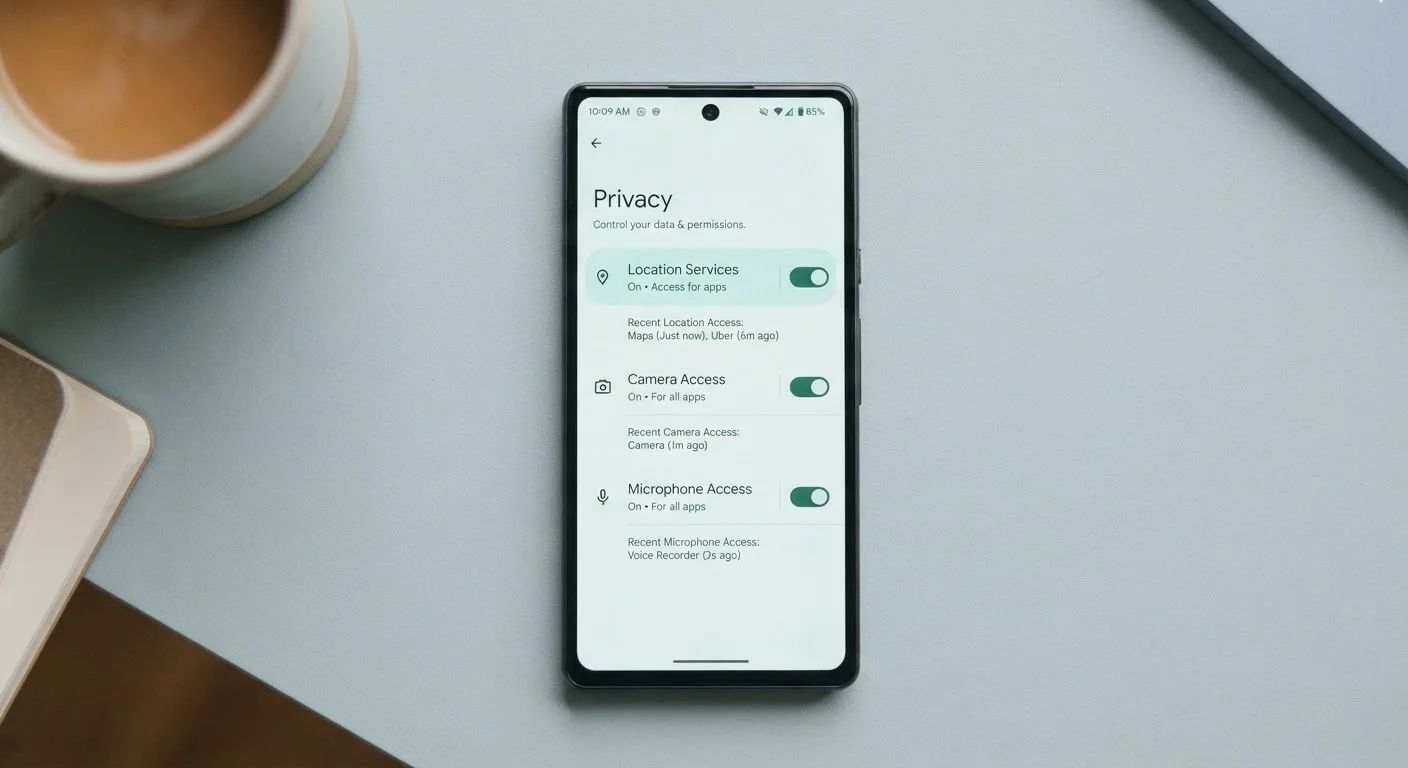
| Where to find privacy settings on Android | Settings → Privacy → Permission Manager |
| Location permission tiers (iOS & Android) | Always, While Using, Never |
| Ad tracking opt-out on iPhone | Settings → Privacy & Security → Tracking |
| Ad personalization opt-out on Android | Settings → Google → Ads → Opt out of Ads Personalization |
| Recommended review frequency | Once per year, or after installing new apps |
Why Privacy Settings Exist — and Why They're Confusing
Every smartphone, tablet, and computer ships with a privacy settings menu. Most people tap past it during setup, accepting defaults they don't fully understand. That's not carelessness — the options are often written in legal or technical language that assumes you already know what it means.
This guide translates the most common privacy controls into plain English, so you can make deliberate choices rather than accidental ones. For broader context on how your device shares data beyond its settings menu, see our Internet & Privacy hub.
| Where to find privacy settings on iPhone | Settings → Privacy & Security |
| Where to find privacy settings on Android | Settings → Privacy → Permission Manager |
| Location permission tiers (iOS & Android) | Always, While Using, Never |
| Ad tracking opt-out on iPhone | Settings → Privacy & Security → Tracking |
| Ad personalization opt-out on Android | Settings → Google → Ads → Opt out of Ads Personalization |
| Recommended review frequency | Once per year, or after installing new apps |
The Core Permission Categories — Decoded
Modern operating systems group permissions into categories. Here's what each one actually governs:
- Location: Allows an app to read your GPS coordinates. Most systems offer three tiers — Always (even when the app is closed), While Using (only when you have the app open), and Never. A weather app needs location. A flashlight app does not.
- Microphone: Lets an app capture audio from your device's microphone. Voice assistants and video-call apps need this. A simple calculator asking for microphone access is a red flag worth investigating.
- Camera: Grants direct access to your front or rear camera. Legitimate reasons include video calls, document scanning, and photo editing apps.
- Contacts: Gives an app a full copy of your address book — names, phone numbers, emails. Messaging apps have a clear use case; most others do not.
- Notifications: Controls whether an app can send alerts to your lock screen or notification tray. This is more about focus than privacy, but notification permissions can be exploited for persistent ad delivery.
For a deeper look at how permissions work at the app level, see Understanding App Permissions: What You're Agreeing To.
App permission
An explicit grant that allows an app to access a specific hardware feature or data category on your device, such as your camera or contacts. You can usually grant, deny, or revoke these at any time.
App Tracking Transparency (ATT)
An iOS feature that requires apps to ask your permission before tracking your activity across other companies' apps and websites. Denying the request restricts cross-app behavioral profiling.
Location history
A log maintained by a platform (such as Google or Apple) that records places you've visited over time, typically to power features like timeline maps or predicted commutes. It is distinct from per-app location access.
Diagnostic data
Anonymized crash reports and usage statistics your device sends to its manufacturer. This data is intended to improve software stability and is generally considered low-sensitivity, though it can be disabled.
Permission Manager
A built-in Android tool that shows every permission category and which apps have been granted access. It allows you to revoke access for any app without uninstalling it.
Personalized ads
Advertisements targeted to you based on your app usage, search history, and behavioral data. Most platforms allow you to opt out of personalization, which makes ads less targeted but doesn't eliminate them entirely.
Ad Tracking, Analytics, and Personalization Controls
Beyond individual app permissions, devices have system-level settings that affect how your behavior is collected and shared across apps.
Ad Tracking / Personalized Ads
Both iOS and Android allow you to limit cross-app ad tracking. On iOS, this is called App Tracking Transparency — apps must ask before they can follow your activity across other companies' apps and websites. On Android, you can opt out of ads personalization in the Google settings. Limiting this doesn't eliminate ads; it just means ads will be less targeted to your specific browsing habits.
Diagnostic and Usage Data
This setting shares anonymous crash reports and usage patterns with the device manufacturer. It's generally low-risk — data is meant to be anonymized — but disabling it is a reasonable choice if you prefer to share nothing.
Personalization Based on Location History
Separate from per-app location access, some platforms maintain a location history log that powers features like timeline maps or predictive commute alerts. This can usually be turned off or cleared in your account's privacy dashboard.
Changing a Setting Won't Break Your Apps
Many people hesitate to revoke permissions because they fear it will stop an app from working. In practice, most apps handle denied permissions gracefully — they simply skip the feature that requires that access. A photo app denied microphone access will still edit photos; it just won't record video with sound. You can always restore a permission later if you discover you need it.
Practical Steps: Where to Find and Change These Settings
Knowing the settings exist is half the battle. Here's where to find them:
- iPhone / iPad: Settings → Privacy & Security. Each category (Location Services, Microphone, Camera, etc.) lists every app that has ever requested that permission.
- Android: Settings → Privacy (or Security & Privacy, depending on the manufacturer). Look for Permission Manager to see a per-category breakdown.
- Windows: Settings → Privacy & Security. Each permission type appears in the left sidebar.
- Mac: System Settings → Privacy & Security. Similar category layout to iPhone.
A good habit is to review these settings every year — apps you've forgotten about may still hold active permissions. Our annual digital privacy audit checklist walks through this process step by step.
You might also find it useful to pair this review with privacy-conscious browsing habits that reduce your footprint beyond the settings menu.